Painting & shortcuts
One brush for weights and masks, with mirroring, vertex selection and a full set of shortcuts.
Brush operators
Set the brush target to Weights or Mask. The operators work the same on both.
- Add
- Adds influence for the active bone.
- Replace
- Paints the active bone's influence toward a target weight.
- Multiply
- Scales one influence. Below 1 shrinks it, above 1 grows it.
- Relax
- Smooths values toward their neighbourhood average.
- Erase
- Subtracts influence.
- Unify
- Drives the vertices under the brush toward their shared average.
- Sharpen
- Pushes each value away from its neighbourhood average. The inverse of Relax.
Brush settings
- Size · Strength · Falloff
- The engine's own brush properties, shared by the viewport ring and the panel.
- Space
- Surface measures falloff across the mesh surface. Volume measures it straight through space.
- Mode
- Paint uses the brush radius. Flood Connected applies the operator to the whole connected piece of mesh under the cursor, with no falloff.
Mirroring
- Mirror strokes
- Off by default. Each stamp is also applied at the mirrored vertices, driving the opposite-side bone.
- Mirror selection
- Adds each lassoed vertex's partner to the selection, without changing how the brush paints.
- Axis
- X, Y or Z: the plane the mirror reflects across.
- Direction
- Positive to negative, negative to positive, or flip. Used by the one-shot Mirror action and mirrored floods.
Vertices pair by position; bones pair by name. l/r and left/right are recognised as whole words. For any other naming, add search-and-replace rules. They are checked first.
Selecting vertices
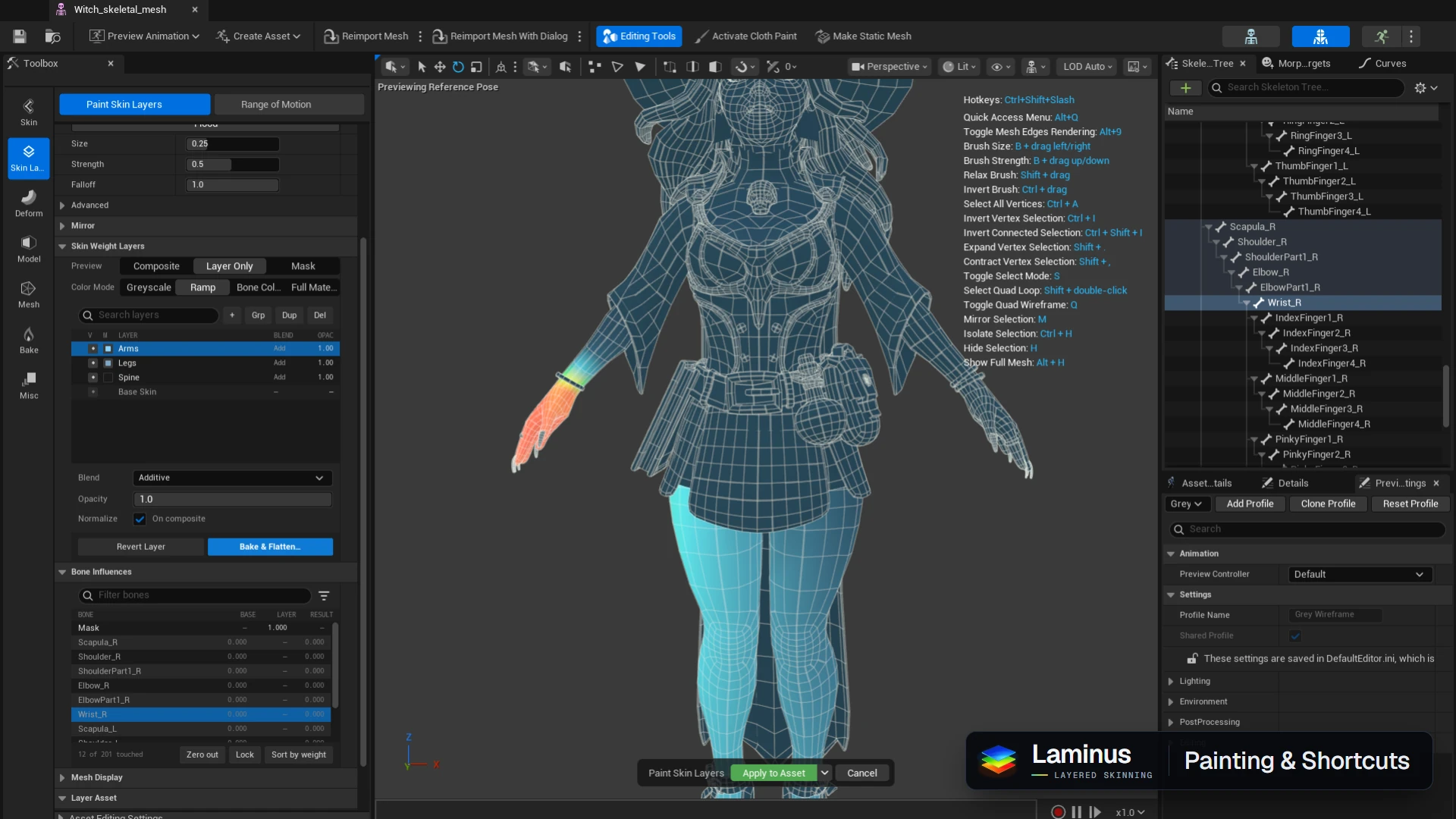
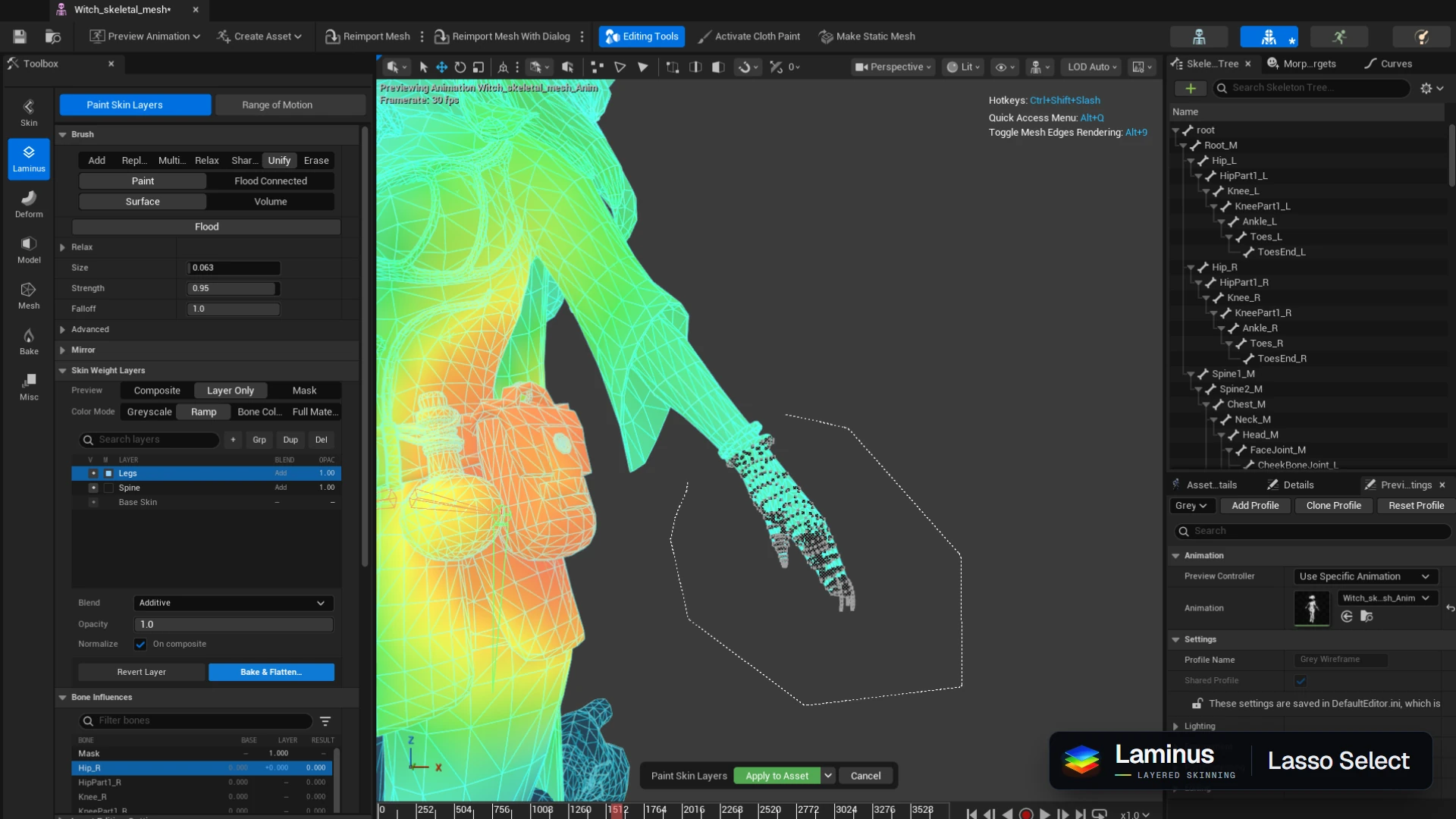
Press S for select mode. Click picks a vertex and dragging draws a lasso. Shift adds, Ctrl removes, and Shift + double-click on a neighbouring vertex adds its quad loop.
Keyboard shortcuts
Brush
Brush sizeB + drag left/right
Brush strengthB + drag up/down
Relax brushShift + drag
Invert brushCtrl + drag
ViewToggle quad wireframeQ
Toggle mesh edgesAlt + 9
Quick access menuAlt + Q
Show hotkeysCtrl + Shift + /
Selection
Toggle select modeS
Select all verticesCtrl + A
Invert selectionCtrl + I
Invert connected selectionCtrl + Shift + I
Expand selectionShift + .
Contract selectionShift + ,
Select quad loopShift + double-click
Mirror selectionM
Isolate selectionCtrl + H
Hide selectionH
Show full meshAlt + H