
Getting started
Install Laminus, open a skeletal mesh, and paint your first layer.
Requirements
- Engine
- Unreal Engine 5.6, 5.7 or 5.8 on Windows 64-bit
- Project
- Any project with a Skeletal Mesh to paint
Install
- Add Laminus to your library on Fab.
- In the Epic Games Launcher, open Unreal Engine → Library → Fab Library, find Laminus, and choose Install to Engine for your engine version.
- Start the editor, open Edit → Plugins, search for Laminus, enable it, and restart.
Open the tool
- Open any Skeletal Mesh asset.
- In the Skeletal Mesh Editor toolbar, click Editing Tools.
- In the tool palette, choose the Laminus tab, then Paint Skin Layers.
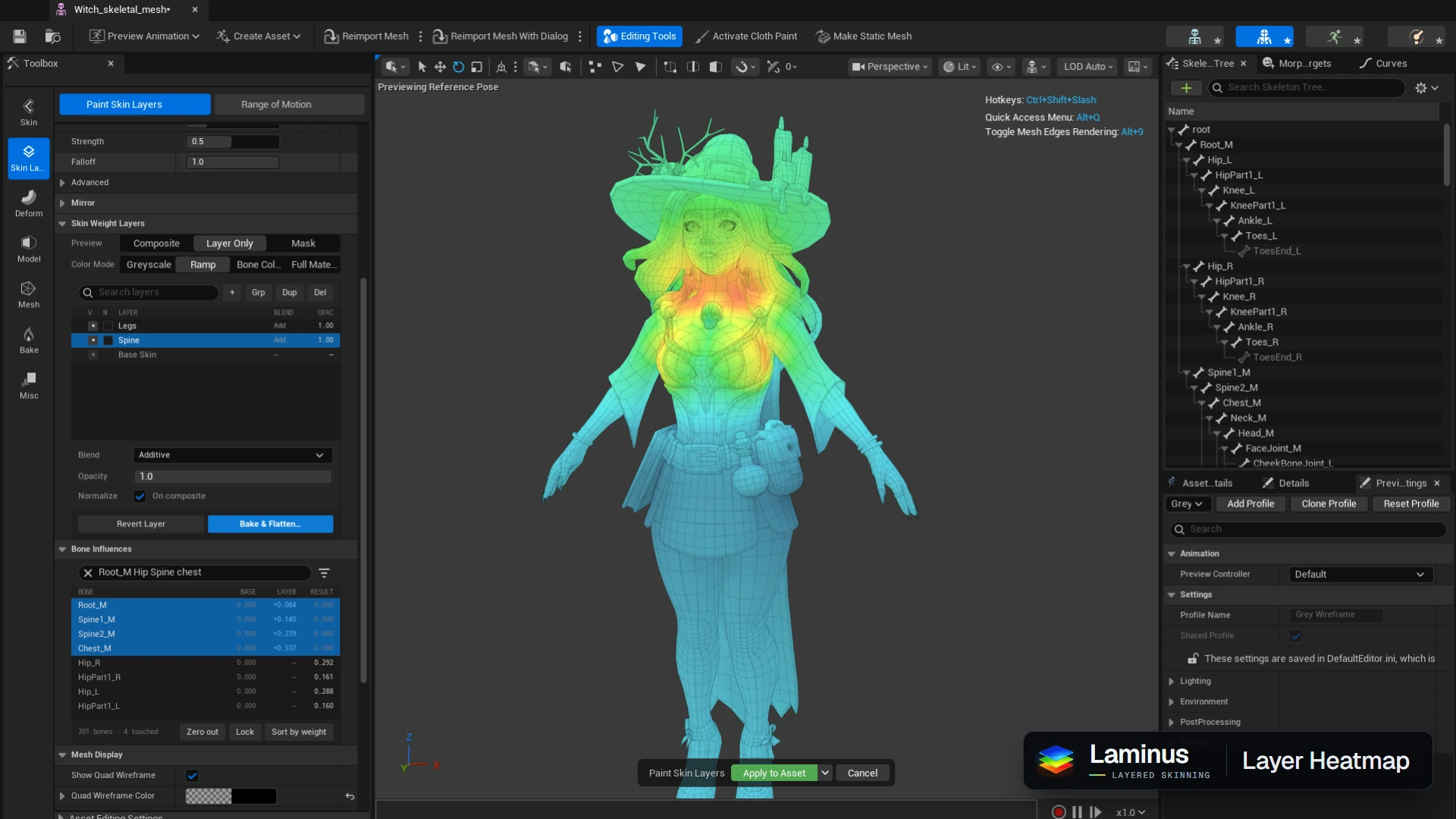
Paint your first layer
- Laminus pairs the mesh with a layer asset named
<MeshName>_SkinLayers, saved beside it. Its first entry, Base Skin, holds the mesh's current weights. - Click + above the layer list to add a layer.
- Pick a bone in Bone Influences or the Skeleton Tree. The two selections stay in sync.
- Paint in the viewport. The Result column shows what the whole stack now gives each bone.
- Click Save Asset to keep your layers.